
- Joined
- Jun 29, 2024
Due to a few users saying they don't understand how to watermark and due to the popularity of the watermaring discussion thread I've tasked myself with making an easy guide on how to install yt-dlp (Youtube downloader) and ffmpeg (for processing videos and adding the mark).
I have packaged everything neatly in a .7z for everyone to download with everything already installed (for Windows) with a handy readme to reference. Please note this requires 7zip or winrar. Feel free to vet this as it's simply ffmpeg and yt-dlp downloaded directly from both sources without any changes. Note that the executables are both complete compiled binaries so no dependencies are requires, thus both programs will run only from their executables. Note the compiled/modified date on the file and stare/compare to the current build on the website to verify that I have not modified it.
Installation
1. Extract the .7z to C:\ so that your filepath is C:\ytdl
1b. Alternatively if you don't trust zip files download yt-dlp here and ffmpeg here (click the blue Windows x64 button) and install them in a folder named 'ytdl' under C:\
The .exe should be directly in C:\ytdl so that the exe filepath is C:\ytdl\yt-dlp.exe
2. Open CMD (press Windows button + R and type "cmd" without the quotes | open the start menu and type cmd and press enter). Leave this window open for now.
3a. Now we are going to create a system environment variable in windows so that you do not have to call upon the .exes within their directory without having to navigate to this directory every time. This is HIGHLY RECOMMENDED as it just makes it much easier for your future self.
Click START -> type envir -> click Edit the system environment variables
Click ENVIRONMENT VARIABLES
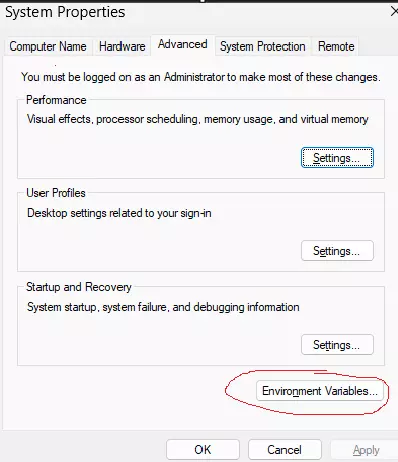
You will see User Variables for $userName at the top, underneath this doubleclick PATH. Click new and type c:\ytdl and press enter. Click new and type c:\ffmpeg and press enter. It should now look like this:
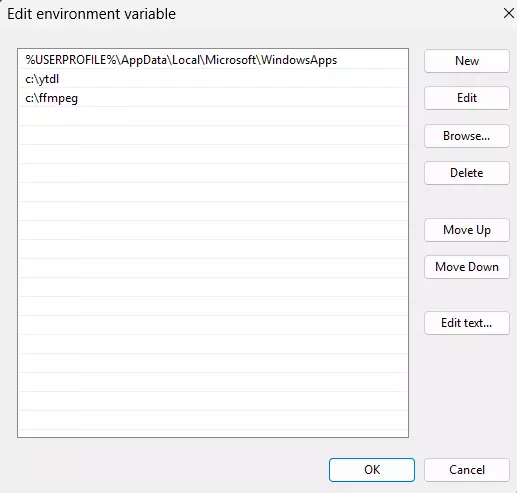
VERY IMPORTANT: Press OK out of this window, press OK out of the next window, and press OK out the the next window. If you do not do this it will not save your changes.
4. Optional but Recommended: Create or edit the file named ".netrc". If you do not have this file simply create a new text document and rename it to .netrc (not .netrc.txt) and paste:
"machine youtube login YOUTUBELOGIN@EMAIL password PASSWORDGOESHERE"
You do not need to use a login for downloading from youtube however if you are downloading videos over a VPN you may get errors regarding "sign in to confirm you are not a bot" or "age verification required". I recommend making a separate youtube/google account for this for anonymity purposes. You can create one without mobile number verification if you switch your VPN to Norway and clear your cache and try again. Obviously you need to copy/paste your email address and password in the file.
Installation complete.
You may now open CMD and run: ytdl and ffmpeg without going to their directory as it is a global command line variable. I would recommend doing a yt-dlp -U to update to the newest version before going further.
Congratulations and happy watermarking.
ytdlp reference for more advanced options
For quickly editing down videos I highly recommend also installing XMedia Recode and watching some Indian tutorials or whatever to learn how to clip videos and/or add audio. It's simple and straight forward and open source (free).
I have packaged everything neatly in a .7z for everyone to download with everything already installed (for Windows) with a handy readme to reference. Please note this requires 7zip or winrar. Feel free to vet this as it's simply ffmpeg and yt-dlp downloaded directly from both sources without any changes. Note that the executables are both complete compiled binaries so no dependencies are requires, thus both programs will run only from their executables. Note the compiled/modified date on the file and stare/compare to the current build on the website to verify that I have not modified it.
Installation
1. Extract the .7z to C:\ so that your filepath is C:\ytdl
1b. Alternatively if you don't trust zip files download yt-dlp here and ffmpeg here (click the blue Windows x64 button) and install them in a folder named 'ytdl' under C:\
The .exe should be directly in C:\ytdl so that the exe filepath is C:\ytdl\yt-dlp.exe
2. Open CMD (press Windows button + R and type "cmd" without the quotes | open the start menu and type cmd and press enter). Leave this window open for now.
3a. Now we are going to create a system environment variable in windows so that you do not have to call upon the .exes within their directory without having to navigate to this directory every time. This is HIGHLY RECOMMENDED as it just makes it much easier for your future self.
Click START -> type envir -> click Edit the system environment variables
Click ENVIRONMENT VARIABLES
You will see User Variables for $userName at the top, underneath this doubleclick PATH. Click new and type c:\ytdl and press enter. Click new and type c:\ffmpeg and press enter. It should now look like this:
VERY IMPORTANT: Press OK out of this window, press OK out of the next window, and press OK out the the next window. If you do not do this it will not save your changes.
4. Optional but Recommended: Create or edit the file named ".netrc". If you do not have this file simply create a new text document and rename it to .netrc (not .netrc.txt) and paste:
"machine youtube login YOUTUBELOGIN@EMAIL password PASSWORDGOESHERE"
You do not need to use a login for downloading from youtube however if you are downloading videos over a VPN you may get errors regarding "sign in to confirm you are not a bot" or "age verification required". I recommend making a separate youtube/google account for this for anonymity purposes. You can create one without mobile number verification if you switch your VPN to Norway and clear your cache and try again. Obviously you need to copy/paste your email address and password in the file.
Installation complete.
You may now open CMD and run: ytdl and ffmpeg without going to their directory as it is a global command line variable. I would recommend doing a yt-dlp -U to update to the newest version before going further.
\\ edit usernameEmail and PASSWORD in .netrc before using
yt-dlp "URL" \\ simple download to mp4 \\ add -o 'filename' to download to a specific filename
yt-dlp -x --audio-format mp3 "URL" \\ simple mp3 download
yt-dlp -U \\ Update
\\ Watermark (replace input_file and output_file)
ffmpeg -y -i INPUT_FILE.mp4 -f lavfi -i color=c=0x00000000@0.0:s=qcif:r=10,format=rgba -filter_complex "[1]drawtext=text='nigger':fontsize=48:fontcolor=#00000077[totile];[totile]tile=25x25[tooverlay];[0:v][tooverlay]overlay=x=sin(n / 5)*5:y=sin(n / 3) * 2" -shortest OUTPUT_FILE.mp4
yt-dlp "URL" \\ simple download to mp4 \\ add -o 'filename' to download to a specific filename
yt-dlp -x --audio-format mp3 "URL" \\ simple mp3 download
yt-dlp -U \\ Update
\\ Watermark (replace input_file and output_file)
ffmpeg -y -i INPUT_FILE.mp4 -f lavfi -i color=c=0x00000000@0.0:s=qcif:r=10,format=rgba -filter_complex "[1]drawtext=text='nigger':fontsize=48:fontcolor=#00000077[totile];[totile]tile=25x25[tooverlay];[0:v][tooverlay]overlay=x=sin(n / 5)*5:y=sin(n / 3) * 2" -shortest OUTPUT_FILE.mp4
Congratulations and happy watermarking.
ytdlp reference for more advanced options
For quickly editing down videos I highly recommend also installing XMedia Recode and watching some Indian tutorials or whatever to learn how to clip videos and/or add audio. It's simple and straight forward and open source (free).
Attachments
Last edited:


