Please help me with Photoshop settings

  • 🏰 The Fediverse is up. If you know, you know.
  • Want to keep track of this thread?
    Accounts can bookmark posts, watch threads for updates, and jump back to where you stopped reading.
    Create account

UnsufficentBoobage

Unbridled lust for men & smetana
kiwifarms.net
Joined
Dec 3, 2017
Some time ago, my Photoshop (CS2) went ballistic, making rows of circles instead of lines, ignoring tablet pressure and transparency etc (all while settings remained unchanged from how I set them like a decade ago), so I completely reset the settings (the button-combo+click-on-shortcut way).

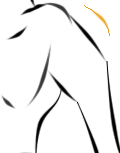
But I feel like there's some bullshit going on with it still, cause, no matter how I try, it refuses to apply "imitate pressure" effect to Pencil lines (brush works fine) - black lines are from old WIP (couldn't finish it due to all that), orange one is current attempt at replicating (3 pixel brush with pressure fade, pencil line underneath - except I made line 1pix as it clutters the brush fade otherwise)
ugh.png


Please, help me with this. If it helps, I have Windows XP (glitchy, but reliable).
 
Last edited:
ea3c03a15e414cbb22b3631388921370.png

I hate to ask such a condescendingly basic-bitch question, but have you checked this setting under the Shape Dynamics to make sure it's paying attention to pen pressure for your lines?

It could also have something to do with your spacing settings. Too much spacing can turn the brush from a bunch of tightly-packed circles forming a line into something more like this:
e7d1a2cdd6fa0d02503e0a63a4c4dff6.png
 
Yup. The problem arises mostly when I use "imitate pressure" on paths (as I find my hands pretty unreliable in doing clean lines, I use paths for most).

Edit: realised I forgot to clarify it in OP, edited.
 
Last edited:
If you're having difficulty with clean, smooth lines and you're adamant about not moving to another program like SAI or Manga Studio, and refuse to upgrade to Photoshop CC, you could just do what I did and look into programs like Lazy Nezumi. They're a little odd to get used to at first, but it helped me smooth out my lines quite a damned bit and I didn't need to sit down and learn a new program I had no interest in learning.
 
And spacing settings I just never touched, period (and when PS started doing that, no amount of fiddling would remove the "row of circles" effect).

Uh, it's not that I "refuse"- I am on XP (and very shitty computer), it supports CS5 at most, and I can't afford paid subscription programs anyway.

...And Lazy Nezumi site refuses to work in my Chrome (opens for a sec, then that bloody"oops, something happened" thing appears).
 
It is not currently present, only pressure oddities are.

Sorry for being incomprehensible, that's cause I am not yet asleep at almost 8AM.
 
There's no nice way to put it, you need to ween yourself out of using Photoshop for illustration anyway, and with luck the issue is only with that software. Hell, I've had my share of baffling issues with CS2 whenever I use that thing for some small tasks. Adobe software is fucking garbage.
 
There's no nice way to put it, you need to I HAVE AUTISM PLEASE LAUGH AT ME yourself out of using Photoshop for illustration anyway, and with luck the issue is only with that software. Hell, I've had my share of baffling issues with CS2 whenever I use that thing for some small tasks. Adobe software is fucking garbage.

lol calm down
 
Check what driver your tablet is using and try uninstalling and reinstalling it. Its possible the driver has reverted to a generic one that doesn't pass along pressure information (I haven't used a tablet in ages so I don't know if this is driver issues are a realistic problem solving idea or not)

Also check within Photoshop itself to see if it recognizes the tablet by brand name/model number.

EDIT: Your OP says "pencil" and pencil does not support pressure iirc (especially in older PS versions). You should be using "brush tool".

adobe-photoshop-cs2-tools-basics-7-728.jpg
 
Last edited:
Wow, you still runs Windows XP?

I'm thinking about getting a cheap thrift store laptop with Windows XP sometime just so I can run an even more ancient version of Photoshop (store-bought 6.0) plus a handful of games I have that won't work with any Windows past XP.

Yeah, I'd keep it offline-only.
 
Pirate SAI and call it fixed.
That's no way to solve things)

Sick bugmen wallpaper! Is that Black in the upper left corner?
Glad you liked it, and yes (I have 18 episodes of series proper waiting for me still):
kamen.jpg


Check what driver your tablet is using and try uninstalling and reinstalling it. Its possible the driver has reverted to a generic one that doesn't pass along pressure information (I haven't used a tablet in ages so I don't know if this is driver issues are a realistic problem solving idea or not)

Also check within Photoshop itself to see if it recognizes the tablet by brand name/model number.

EDIT: Your OP says "pencil" and pencil does not support pressure iirc (especially in older PS versions). You should be using "brush tool".
It's not related to tablet, it's the "imitate pressure" thing that does that. And it worked ok before, so I am sure it couldn't be just pressure not being supported - and if I make the line outrageously wide, it does get thinner at the ends, albeit only a bit, instead of "fading away".
 
Last edited:
It's not related to tablet, it's the "imitate pressure" thing that does that. And it worked ok before, so I am sure it couldn't be just pressure not being supported - and if I make the line outrageously wide, it does get thinner at the ends, albeit only a bit, instead of "fading away".

Yeah but you said "pencil tool" so are you using the pencil, pen, vector or brush tool?
The point isn't about it "worked ok before" its that you reset a bunch of settings and its also possible drivers have bugged or reverted to generic versions.
 
Uh, vector probably? I have russian version, so idk how to explain properly. Basically, I am trying to make it draw along the path, using pencil as instrument, with imitation pressure.
 
Back
Top Bottom